The battery state of a wireless Keychron QMK-based keyboard can be displayed in the operating system
The short version: A wireless QMK-based Keychron keyboard can provide the information about the battery state, e.g. “81%”, to the operating system, just like, for example, a wireless computer mouse. Though the operating system may have to be configured for it to work, and it may not work for all Keychron keyboard models.
An example is a Keychron V6 Max on Ubuntu 22.04 (Jammy Jellyfish), after making some configuration changes in the operating system (it isn’t necessary to install any additional software). The battery state is shown in “Settings” → “Power”, along with other wireless devices that provide the information, e.g., mice and headsets.
Introduction
On the subreddit r/Keychron, questions about displaying the battery state in the operating system for Keychron keyboards, like for other wireless devices, say mice and headphones, is an FAQ. But not much real information is usually provided.
Thus I decided to dig deeper. I couldn’t get it to work at all on Ubuntu 20.04 (Focal Fossa) using a prescribed way, including for mice and headsets for which it was expected to work. The keyboard didn’t provide the “Battery Percentage” line in the output from “info” in ‘bluetoothctl’.
But using a newer Ubuntu version (Ubuntu 22.04) and the described configuration change, I could get the battery to show in the GUI for both a ‘2.4 GHz‘ mouse, two Bluetooth headsets, and a Keychron V6 Max keyboard.
The charge state can be displayed on the Keychron keyboard itself by Fn + B, but this is about the information being transferred to the computer and being shown in the GUI.
The configuration change in Linux
It is essentially as in here. The value-add here is to test it on particular versions of Ubuntu, and for particular Keychron keyboards to find out if and where it actually works (or not). Also, caveats and testing steps are provided to be confident it will work (instead of only doing blind configuration changes).
It can be done as (from the command line):
sudo vi /etc/bluetooth/main.conf
In file main.conf, add a line with this content:
Experimental = true
Notes:
- The line should be in the “[General]” section, not, for example, the “[Policy]” section.
- Proficiency in using vi or Vim is presumed (including quitting it…). If not, use some other editor, like Geany. But it must be run with administrator privileges (in order to make changes to file main.conf), and this may change an application’s normal behaviour… (because it is run as another user)
Then, from the command line, restart the Bluetooth service in order to apply the change (alternatively, restart the computer):
sudo systemctl restart bluetooth
Check that the line with “Experimental” is accepted:
systemctl status bluetooth
The output should not contain “Unknown key Experimental for group General”.
Note that, despite this 2019-05-03 Stack Overflow answer, it actually does work on Ubuntu 22.04 (or at least the ‘dbus-send’ line didn’t work at all (“Error org.freedesktop.DBus.Error.InvalidArgs: No such interface ‘org.bluez.Battery1′”)).
Test that the battery status information is provided by the device
First power on and pair the Bluetooth devices. And test that they work in normal operation.
A gotcha: Only connect one Bluetooth headset at a time… For testing each headset in turn, power the other headsets off.
From the command line, identify the devices (and get their MAC addresses for use in subsequent steps):
bluetoothctl devices
Sample output:
Device 20:74:CF:51:62:CA Titanium by AfterShokz
Device 00:02:3C:9C:29:CF Zen Hybrid (SX:<C@FrxG'fK)
Device E5:EF:C8:61:40:DF Keychron V6 Max
Device 6C:93:08:65:8E:E6 Keychron K5 Pro
Note that this output also contains information about devices connected in the past, so a device’s presence in this list does not guarantee it will work (the response may be something like “Device E5:EF:C8:61:40:DF not available”). Also note that the MAC addresses may not be stable.
Test a device, for example “Keychron V6 Max”, for the presence of the battery state information:
echo -e "connect E5:EF:C8:61:40:DF\ninfo\n" | bluetoothctl
It can also be done interactively:
bluetoothctl
connect E5:EF:C8:61:40:DF
info
Sample output:
Device E5:EF:C8:61:40:DF (random)
   	Name: Keychron V6 Max
   	Alias: Keychron V6 Max
   	Appearance: 0x03c1
   	Icon: input-keyboard
   	Paired: yes
   	Trusted: yes
   	Blocked: no
   	Connected: yes
   	WakeAllowed: no
   	LegacyPairing: no
   	UUID: Generic Access Profile    (00001800-0000-1000-8000-00805f9b34fb)
   	UUID: Generic Attribute Profile (00001801-0000-1000-8000-00805f9b34fb)
   	UUID: Device Information        (0000180a-0000-1000-8000-00805f9b34fb)
   	UUID: Battery Service           (0000180f-0000-1000-8000-00805f9b34fb)
   	UUID: Human Interface Device    (00001812-0000-1000-8000-00805f9b34fb)
   	UUID: Vendor specific           (00010203-0405-0607-0809-0a0b0c0d1912)
   	Modalias: usb:v3434p0961d0113
   	ManufacturerData Key: 0x0006
   	ManufacturerData Value:
     03 00 80 4b 65 79 63 68 72 6f 6e 20 4b 42        ...Keychron KB
   	AdvertisingFlags:
     05                                               .
   	Battery Percentage: 0x56 (86)
In this case, the output contains a line with “Battery Percentage” (the very last line):
Battery Percentage: 0x56 (86)
Which is interpreted as 86%.
The output also contains a line with “UUID: Battery Service (0000180F-0000-1000-8000-00805F9B34FB)”.
To extract just the battery state information (for MAC address E5:EF:C8:61:40:DF in this example):
echo -e "connect E5:EF:C8:61:40:DF\ninfo\n" | bluetoothctl | grep "Battery Percentage"
And with a timestamp (for MAC address E5:EF:C8:61:40:DF in this example):
clear ; echo -n "Time: $(date +%FT%T_%N_ns)" ; echo -e "connect E5:EF:C8:61:40:DF\ninfo\n" | bluetoothctl | grep "Battery Percentage"
Ifs and buts
In the test, it worked on Ubuntu 22.04, but not on Ubuntu 20.04. A reason could be a different version of BlueZ (use “bluetoothd -v” or “bluetoothctl -v”):
- Ubuntu 20.04: 5.53
- Ubuntu 22.04: 5.64
- Ubuntu 24.04: 5.72
On Ubuntu 20.04, “systemctl status bluetooth” on the command line reports this error after the configuration change:
“bluetoothd[1432]: Unknown key Experimental for group General in /etc/bluetooth/main.conf”
In the test, it also only worked for a Keychron V Max series keyboard (V6 Max), but not for a K Pro series keyboard (K5 Pro ISO), which is probably not that surprising (test with, for example, ‘sudo btmgmt con‘). Both keyboards’ firmware was the newest (compiled from the newest source code (October 2024)).
GNOME may be the deciding factor
On a Ubuntu 20.04 system (with the same version of BlueZ, 5.53), but with Cinnamon as the desktop environment, the battery for the V6 Max showed up without any required configuration changes.
It could be due to D-Bus used in GNOME:
“…this specific GATT characteristic was moved into the D-Bus org.bluez.Battery1 interface.”
Or in other words, GNOME broke the battery indication. It seems to have been fixed in Ubuntu 24.04 (Noble Numbat); the battery indication worked out of the box, without requiring the configuration change as in Ubuntu 22.04 (Jammy Jellyfish).
On LMDE with Cinnamon, it worked out of the box. BlueZ version:
- LMDE 6 and Cinnamon 6.4.6: 5.66
Cinnamon version: cinnamon –version from the command line (two single dashes before version (it will not work if copy-pasted directly from here)).
Test conditions
Keyboard: Keychron V6 Max
Keyboard firmware: Compiled from close to the latest source code at the time (2024-10)
Keyboard Bluetooth firmware (for the Bluetooth module): version 0.1.13 (2024-01-08)
Results
The display in Ubuntu 22.04:
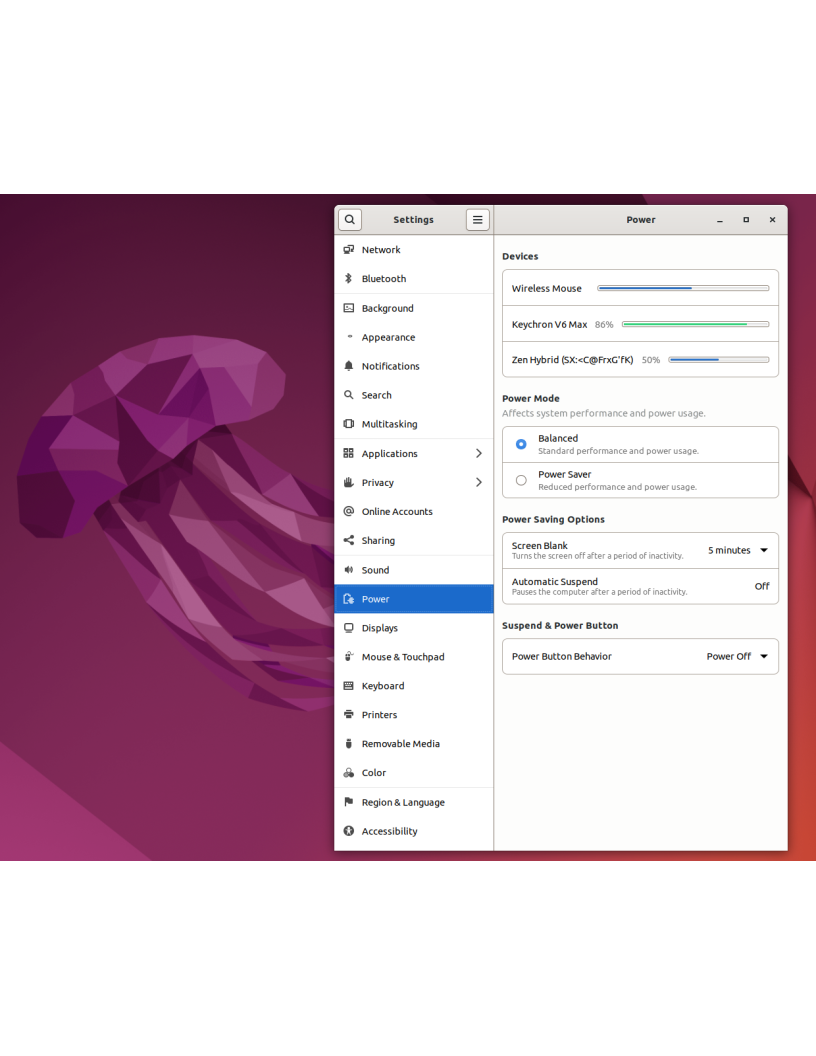
It may or may not be required to restart the computer before it takes effect.
Though the reading is not entirely consistent with the Fn + B indicator: At 85%, the indicator still shows 10/10 (100%). Only at 84% does it change to 9/10 (90%).
References
- Bluetooth battery service specification
- An overview of different Bluetooth versions. E.g., “EDR” for Bluetooth 2 (the battery service is not available)
- Bluetooth. Arch Linux documentation. Includes troubleshooting information
- V6 Max source code. Note: In Keychron’s fork and in that fork, in Git branch “wireless_playground” (not the default branch). No matter the Git branch, for example, “wireless_playground”, it requires special setup of QMK (the standard QMK instructions and many other guides will not work (because they implicitly assume the main QMK repository and a particular Git branch)). Source code commits (RSS feed. Latest: 2024-10-15).
- BlueZ source code. Note: The supposed official site for BlueZ, www.bluez.org, appears to be completely dead (empty pages).
Thanks.
It looks like the issue with K Pro series keyboard is they don’t connect with BLE, but with BT Classic actually:
$ sudo btmgmt con
7C:1E:52:A8:89:77 type BR/EDR
For BLE-capable devices (which Pro’s are claimed to be), the output should be something like:
0C:EC:80:E6:4A:C3 type LE Random
Could you check?
I created an issue:
[Bug] K Pro series connect with BT 3.0 only (no BLE)
https://github.com/Keychron/qmk_firmware/issues/341